
Network settings in VIOSO
Settings for multiclient usage
Section titled “Settings for multiclient usage”These settings apply when multiple instances of VIOSO are connected via network to execute scalable calibrations.
Access from Menu > Options > Settings > Multi client:
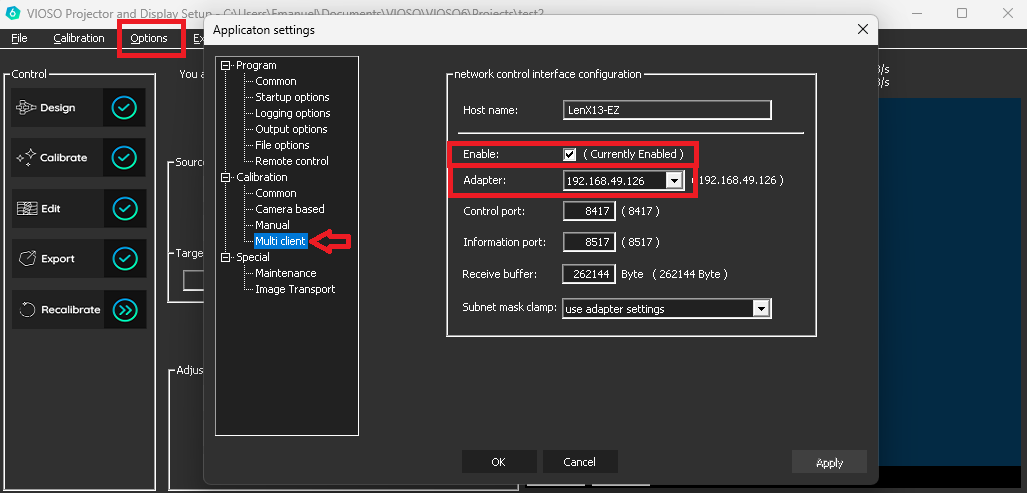
Common Settings
Section titled “Common Settings”These settings should be checked and adjusted whenever a new configuration of PCs is made, or if changes in the network happened.
- Check “Enable” to enable multiclient functionality
- Adapter: Select the network interface - in case you have multiple NICs on your system
Other settings
Section titled “Other settings”These settings should be be left as is, so do change them only if there are issues within the network:
-
Control Port and Information Port: These ports are required for the communication bewtween the VIOSO instances. Do not change unless they conflict with other applications on the same PCs.
Defaults ports as of VIOSO 6.0):
- Control:
8417 - Information:
8517
- Control:
- Receive Buffer: Change only if there are issues due to the networking hardware
- Subnet mask clamp: Change only if required by the network adress scheme
Settings for Remote Control
Section titled “Settings for Remote Control”These settings apply to remote control VIOSO by external applications.
Access from Menu > Options > Settings > Remote Control:
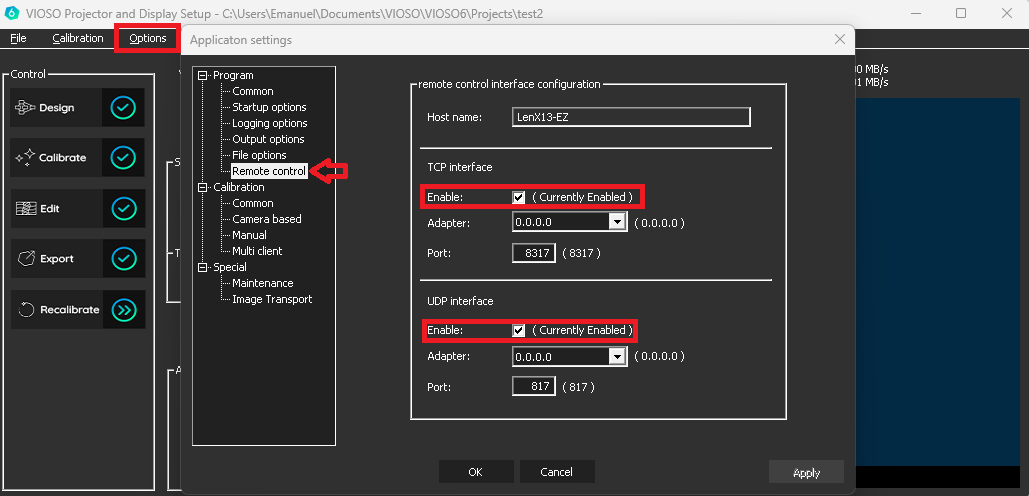
The TCP and UDP interfaces are enabled by default, listening all network adapters.
-
Change the adapter from 0.0.0.0 (all adapters) to a specific adapter to restrict the remote control functionality to this network interface
-
Change the ports in case of issues or conflicts with other applications.
Defaults ports as of VIOSO 6.0):
- TCP:
8317 - UDP:
817
- TCP: