
Find and install NVIDIA Drivers
Finding and installing an appropriate driver for your NVIDIA RTX/Quadro graphics card depends on various parameters, mainly the GPU model and the operating system you are using.
Which NVIDIA driver should be used?
Section titled “Which NVIDIA driver should be used?”VIOSO does not recommend specific drivers since as per version 5xx all GPUs from the NVIDIA RTX/Quadro support EDID minding and Mosaic on any GPU. However, there might be recommendations from the vendor of your workstation or server that you should follow at first.
If there are no such recommendations, you can follow a generic scheme to find a suitable driver for your system:
How to obtain NVIDIA drivers
Section titled “How to obtain NVIDIA drivers”NVIDIA drivers are availble as public downloads. They change frequently.
- Step 1: Open the official NVIDIA driver search: https://www.nvidia.com/download/find.aspx
- Step 2: Filter according to your system:
| Parameter | suggested value | comment |
|---|---|---|
| Product type | NVIDIA RTX/Quadro | |
| Product Series | NVIDIA RTX Series | |
| Product | select your GPU | if you run multiple GPUs, choose the GPU with the oldest release date |
| Operating System | select your OS | we do not recommend to use 32-Bit systems anymore |
| Language | English (US) | |
| Recommended/Beta | Recommended/Certified | Do not use Beta or New Feature Branch drivers |
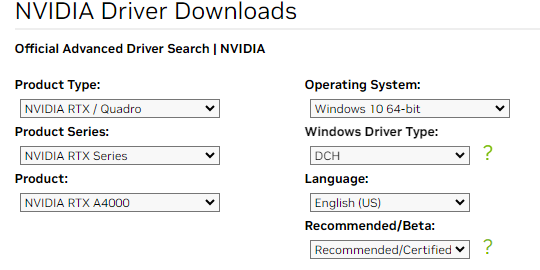
Example of NVIDIA driver search for an A4000-based Windows 10 system
- Step 3: Select the driver based on these considerations:
-
Use a driver from the R5… version
-
Use a driver from the most current or second current version
-
Use a driver with a high revision number (“U-number”). Drivers with a high “U-number” are considerably more stable then drivers with a low U-number
In this sample, we would choose R535 since it has already 12 revisions (“U12”), whereas the more recent branch R550 has 4 revisions (“U4”). We would not pick R470 anymore, even if it comes with a high number of revisions.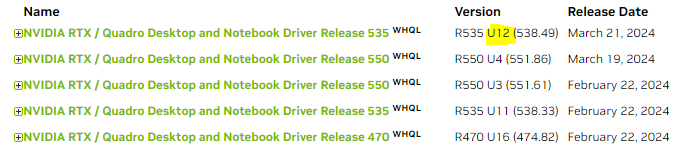
Drivers with a high "U-number" are considerably more stable then drivers with a low U-number
-
Installing NVIDIA drivers
Section titled “Installing NVIDIA drivers”Installing NVIDIA drivers is pretty straight forward. However, it’s important to keep some aspects in mind:
- Step 1: Deactivate any Mosaic configuration. Otherwise drivers may not install correctly!
- Step 2: Launch the installer with Administrator privileges
- Choose “custom install”
- Do not install the RTX desktop manager
- Make a clean install
Parameters for the NVIDIA driver installer:
| parameter | suggested value | comment |
|---|---|---|
| installation option | Custom | do not run an express insallation |
| driver components | [x] graphics driver |
do not install the RTX Desktop Manager |
| clean install | [x] clean install | check the box to run a clean install of the driver |
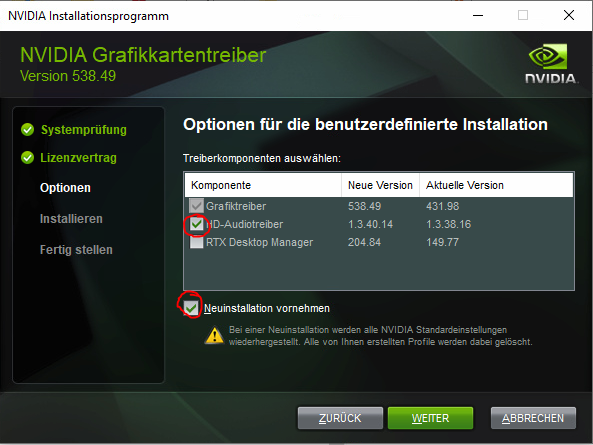
recommended driver installation parameters (custom install option)
- Step 3: Run the installer
- Step 4: Reboot, even if not prompted to do so after the installer has finished