
MiddleVR
MiddleVR is a Unity plugin designed to enable the deployment of Unity applications to VR systems such as Walls, CAVEs, and other cluster rendering systems.
This guide shows you how to integrate your VIOSO projection calibration into MiddleVR.
1. In VIOSO
Section titled “1. In VIOSO ”You can use either Project or Free mode for performing a 3D calibration.
- Export your calibration in the VWF format with 3D.
- Create an .ini file for each display in the format below. You only need to change
calibFilepath (exported mapping from VIOSO),[Channel_Name](of your choice) andcalibIndex:
[default]logLevel=2bLogClear=0 ;clear log file on startbase=[1000,0,0,0; 0,1000,0,0; 0,0,1000,0; 0,0,0,1] ; frontal cam left handed, row major, most DXnear=0.15 ; the minimum rendering distance, all faces closer than that are culledfar=20000 ; the maximum rendering disctance, all faces futher than that are culledbTurnWithView=0 ; set to true, if moving platform alas world turns with view directionbicubic=0 ; set to true to enhance sampling acuracy, will use up some extra GPUcalibFile=C:\Users\Public\Documents\VIOSO\VIOSOPlayer\Export\MyCalib.vwfautoViewC=1 ;widen FoV to cover a range of autoViewC * screenbAutoView=1 ;overwrites screen fov and dir[Channel_1]calibIndex=02. in Middle VR 2.1+
Section titled “2. in Middle VR 2.1+ ”You can also find these steps in the MiddleVR Documentation
https://www.middlevr.com/2/doc/2.1.0.0/CfgWarping.html#vioso
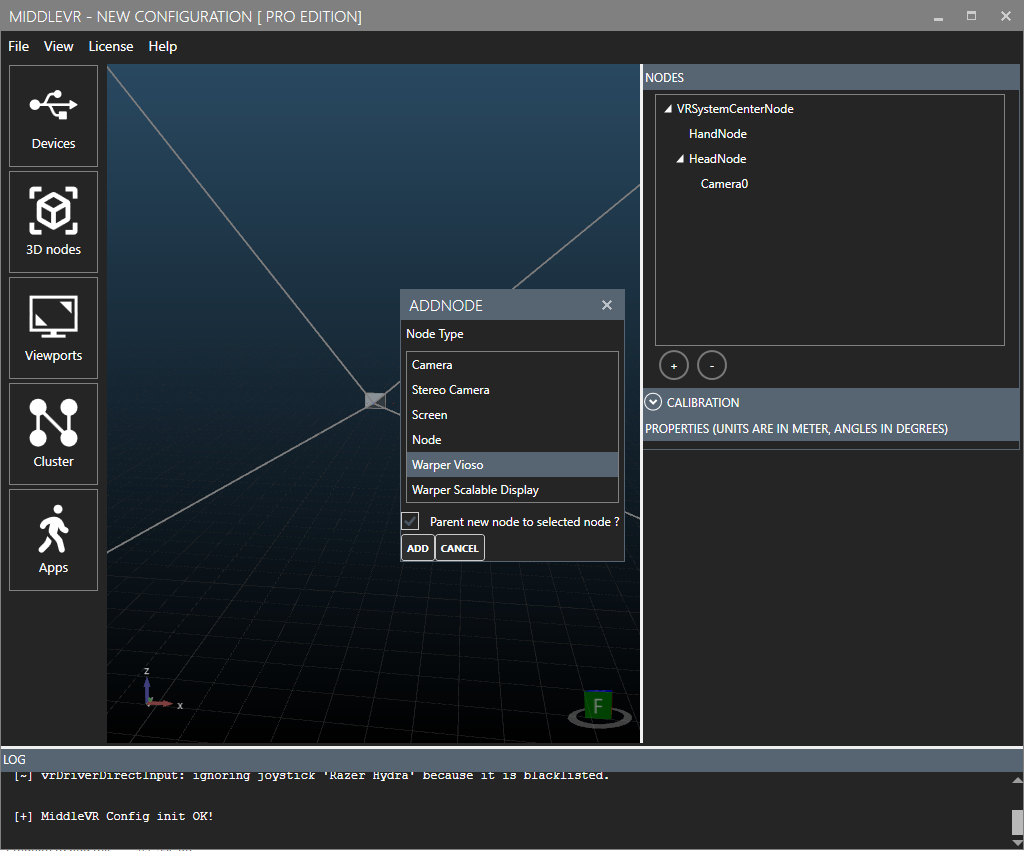
- in 3D nodes: Start by adding a new Vioso Warper
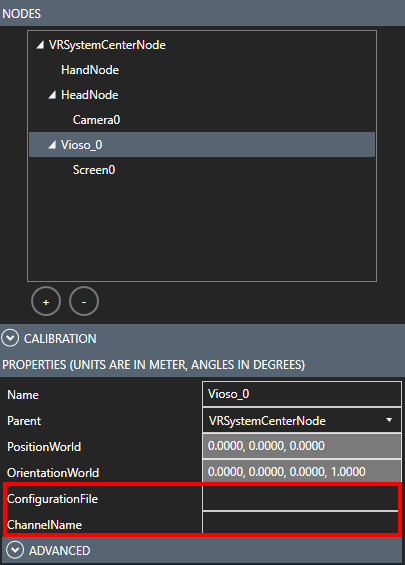
- Enter the configuration file and channel name. You can find a template of a .ini file in
MiddleVR2/data/Vioso_MiddleVR_Template.ini
- Assign the warper to a Camera
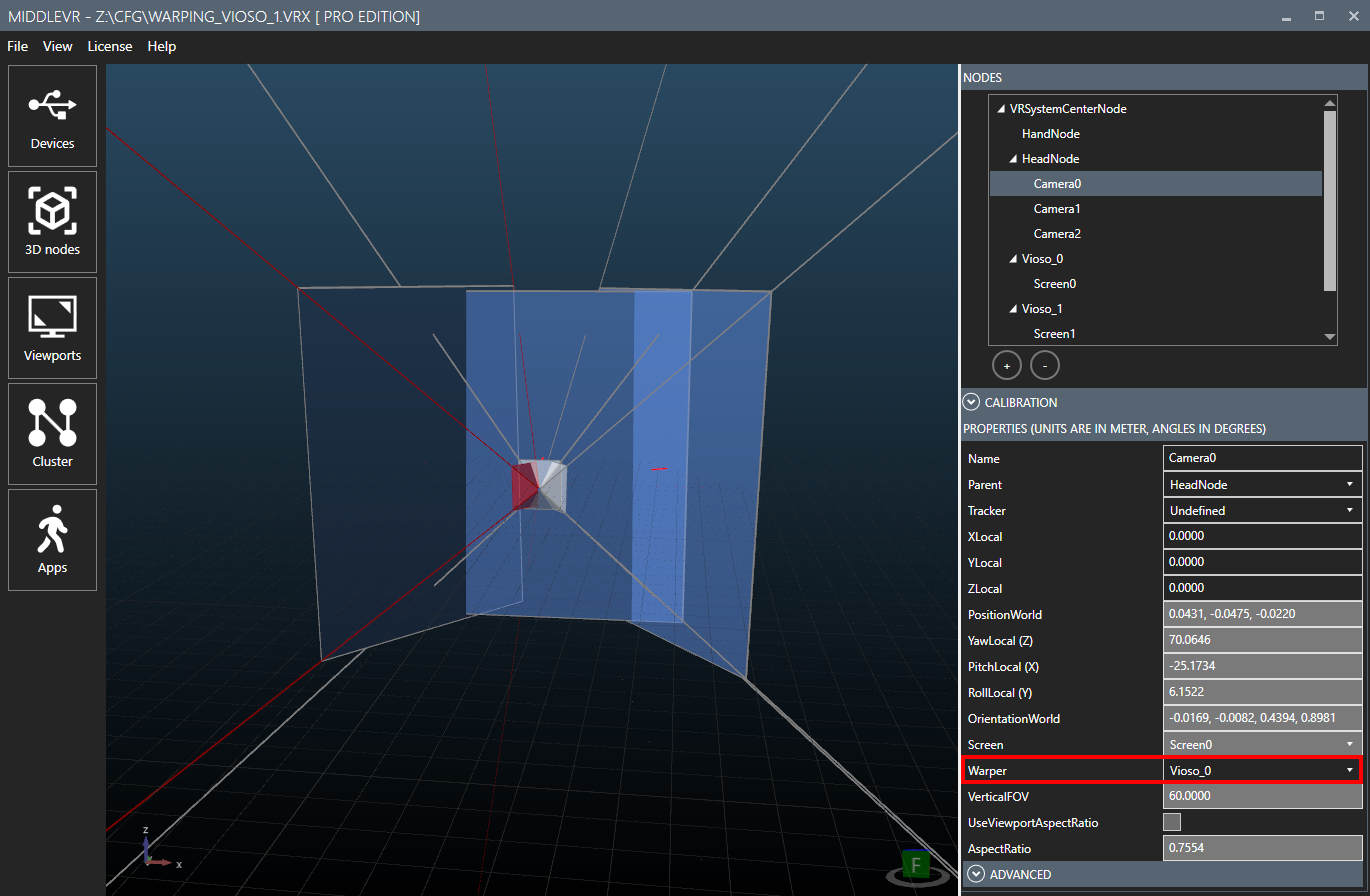
- Your VIOSO calibration is now integrated.
- Go back to the APPS tab and click on RUN.
3. Middle VR 2.0 (Legacy)
Section titled “3. Middle VR 2.0 (Legacy) ”For older versions of MVR, please follow our old helpdesk doc. https://helpdesk.vioso.com/documentation/integrate-3d-engines/middlevr/#2_In_MiddleVR_20_legacy
3. Troubleshooting
Section titled “3. Troubleshooting ”- In the Displays section, make sure the Window Mode is set to Compositor or Proxy
- Check the VIOSO log file here:
C:\Users\[YourUserName]\AppData\Local\Temp\MiddleVR\MiddleVR_2023-06-29\MiddleVR_Vioso_1.log
Field of view adjustment
Section titled “Field of view adjustment ”Moving the camera far away from the screen can result in black borders appearing around the screen. To fix this, you can adjust the field of view coverage by increasing the autoViewC variable in the .ini files until you get no visible black borders on the edges.
Multi-Cluster Setup
Section titled “Multi-Cluster Setup ”To run middleVR on several clusters with a VIOSO calibration make sure you take into consideration these measures:
- Calibration files (.vwf) and configuration files (.ini) must be available on all clusters with the same path. It is recommended to use local drives instead of a common network drive for better performance.
- Assign a viewport to every cluster. In case one cluster node is not part of the projection calibration, simply create a standard screen and camera for it in the 3D nodes tab.
- Follow the cluster configuration guide from middleVR for the initial setup of your multi-cluster system.