
Demo License
Option 1: Request License at Download
Section titled “Option 1: Request License at Download ”To get the latest version of VIOSO, please visit VIOSO Demo Download and download the Installer for VIOSO. Fill the form below to receive a demo license:
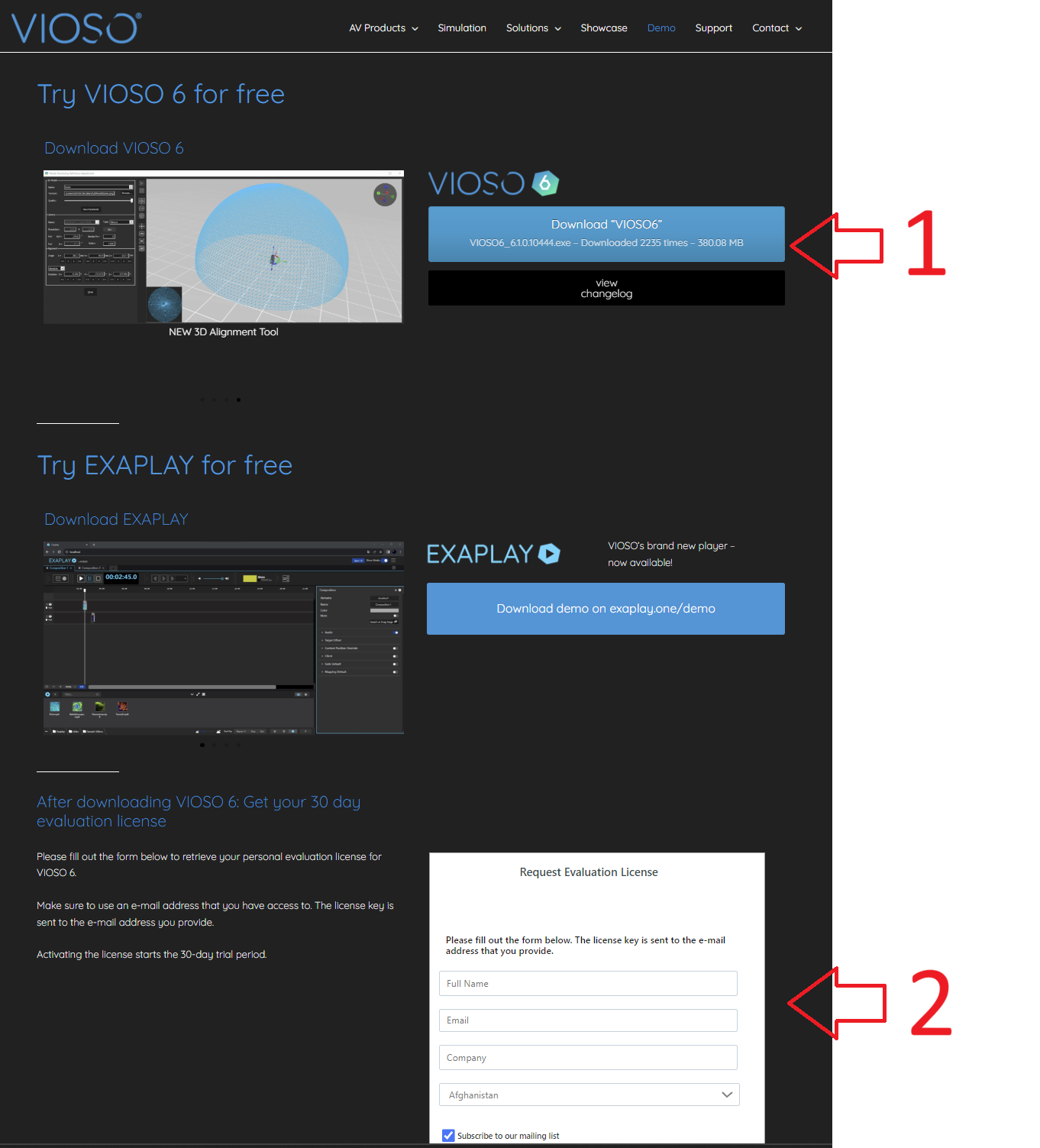
The demo license is sent to you via e-mail after a few seconds, so make sure to enter an e-mail address that you can access.
Option 2: Request License at first run
Section titled “Option 2: Request License at first run ”If you run VIOSO without a permanent or demo license, you will be prompted with this dialog stating “No license key was found on your system”:
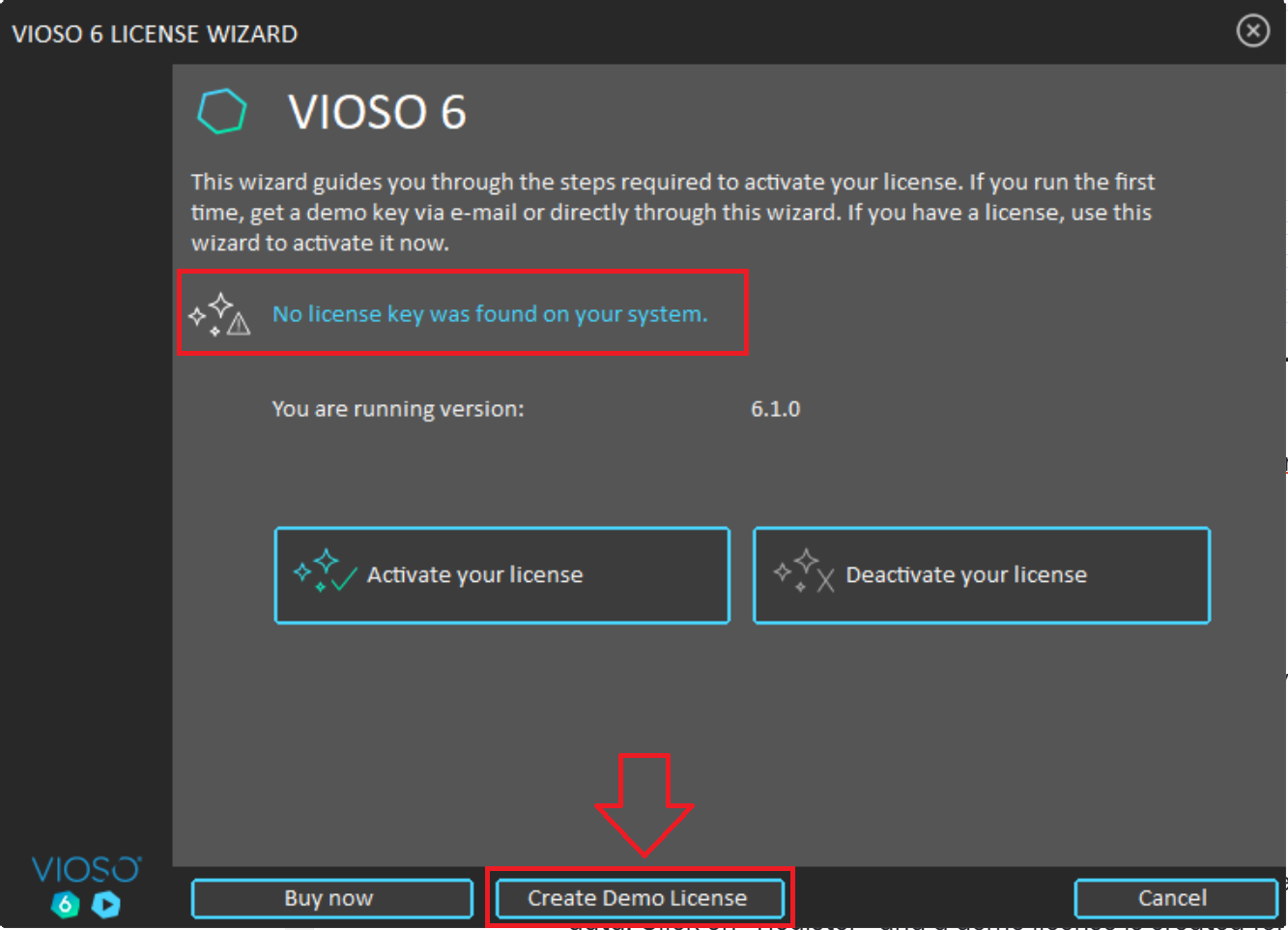
Click Create Demo License and fill the form with valid data. Click on Register and a demo license is created for this particular PC:
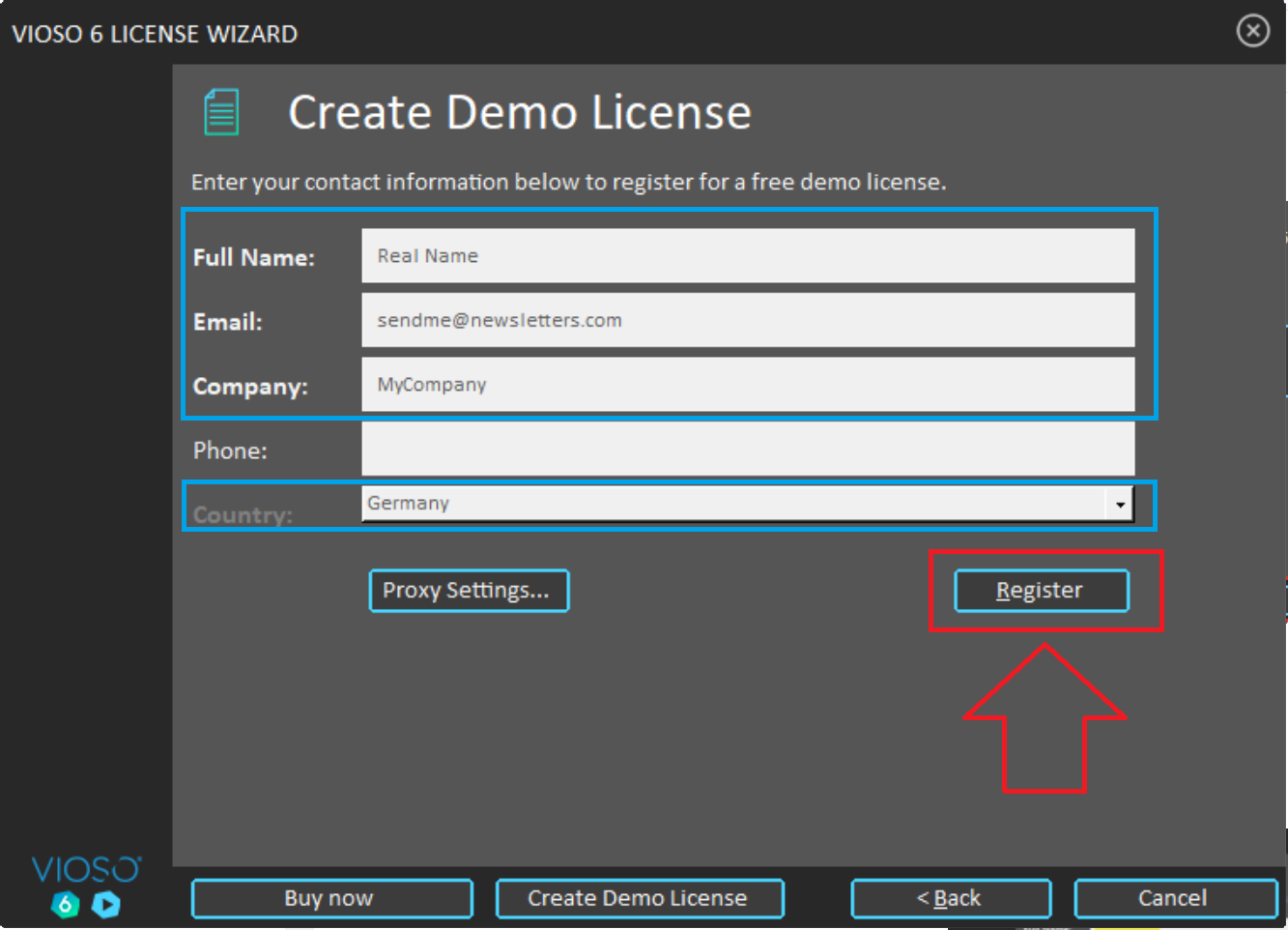
After registering a new demo license is created and applied directly. You can then close the License Wizard and proceed starting the application.