
Pixera v.2
With version 2.0.167 Pixera comes with a VIOSO-based calibration module and a completely renewed way to handle the inter-program communication. This avoids many of the obstacles in the past and enables a way more capable and streamlined workflow.
In the following chapters we concentrate soley on this and future builds of Pixera.
Licensing
Section titled “Licensing”The VIOSO licensing of Pixera 2 is handled by Pixera dongles on a per-projector basis:
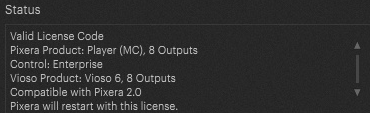
In Pixera license information it is shown as VIOSO Product: VIOSO, x Outputs.
Licensing for VIOSO outputs is solely handled by the Pixera Renderengine. For each PC that is rendering on projectors, the appropriate number of VIOSO Outputs must be licensed. Pixera Director or Pixera Creator PCs do not require dedicated VIOSO licenses.
VWF files created by genuine VIOSO software of projectiontools software (sold by VIOSO GmbH) will work within Pixera without the requirement of VIOSO outputs on Pixera-side. This avoids double-licensing requirements (e.g. if existing VIOSO software of projectiontools software is used)
| Role | required VIOSO outputs on Pixera dongle | Remark |
|---|---|---|
| Pixera Client Pixera running on single PC | 1 per projector | |
| Pixera Creator | 0 | shows Demo overlay on outputs |
| Pixera Director | 0 | |
| Using fully licenced VIOSO software | 0 | |
| Using projectiontools software | 0 |
Using old autocalibration module
Section titled “Using old autocalibration module”If a dongle contains “old” VIOSO licenses, it won’t launch the new VIOSO 6-based calibrator but throw this warning:

The easiest way to resolve is to update the dongle to enable the use of VIOSO.
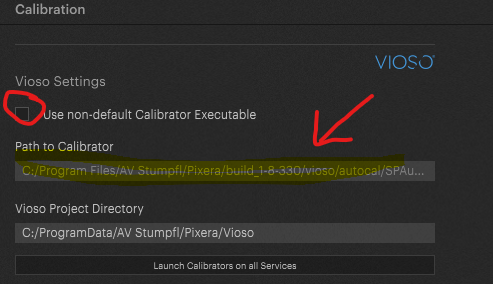
As a fallback, an custom build of the autocalibration can be used, which is set in Settings / Calibration:
VIOSO Installation
Section titled “VIOSO Installation”The autocalinbration software comes bundled with each Pixera installer.
| VIOSO for Pixera installation path | C:\ProgramFiles\VIOSO6_Pixera |
| Program exectuable | C:\ProgramFiles\VIOSO6_Pixera\SPCalibrator.exe |
| Standard path for projects | Documents/VIOSO/VIOSO6_AVStumpfl/Projects |
| Standard path for calibrations (free mode) | Documents/VIOSO/VIOSO6_AVStumpfl/Calibration |
| Global program configuration | C:\ProgramData\VIOSO\VIOSO6_AVStumpfl |
VIOSO Calibration modes
Section titled “VIOSO Calibration modes”VIOSO 6 comes with two modes of operation: Free mode and Project mode (learn more about this here: Project Mode vs. Free Mode.
Both modes are supported within Pixera 2, including 3D mapping features of free mode and 1-click recalibration automation for both modes.
We recommend to go with the Project Mode as default as it faciliates the setup by a great deal.