
First Init & Autostart
After installation, VIOSO shows a dialog to make some important initial configurations (“First Init”).
Launching the First Init Dialog anytime
Section titled “Launching the First Init Dialog anytime”In case you missed this dialog or want to change everything all over, there is a way to call this First Init:
- From the Windows Start Menu, type “start first init” in the Search Field
- Select the “First Init” shortcut from VIOSO displayed like this:

Now you can simply click the shortcut and the “First Init” dialog will show up.
First Init dialog explained
Section titled “First Init dialog explained”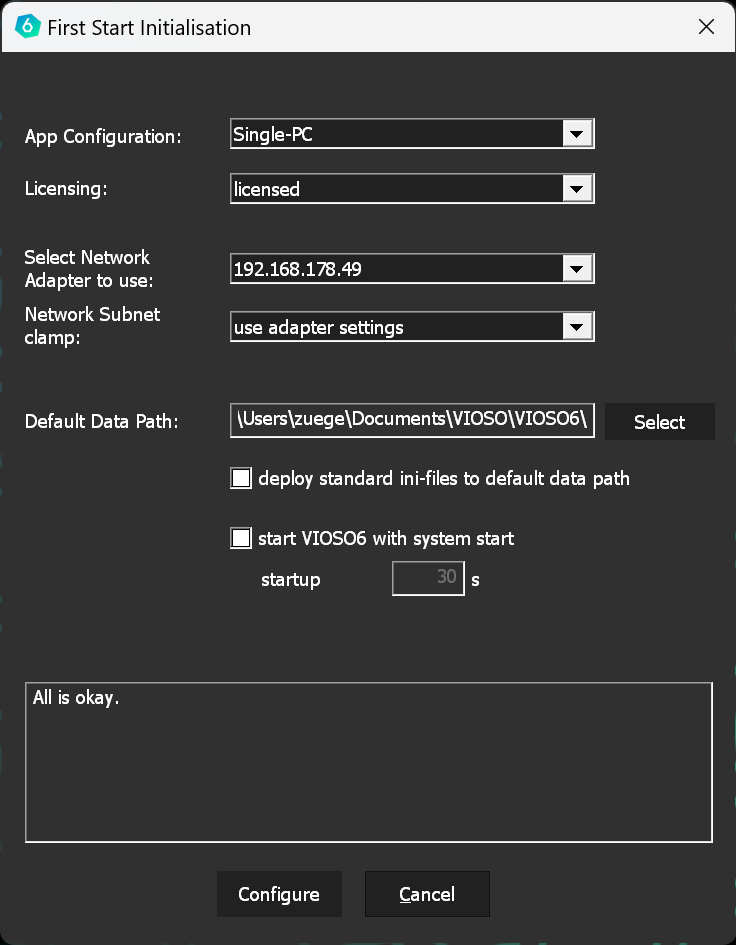
App Configuration
Section titled “App Configuration”These are profiles, that give VIOSO a basic configuration for certain use cases. Selecting an app configuration eases the handling of VIOSO especially in larger installations:
| App Configuration | Licensing | Use case |
|---|---|---|
| Single-PC | Requires a permanent or demo license; |
Use when there is just one PC involved. It also enables multi-pc usage but misses some optimizations for networked calibrations. |
| Multi-PC Master | Requires a permanent or demo license; |
Use on a PC that acts as a master for a multi-pc calibration. |
| Multi-PC Client | No license required | Use for all PCs that act as a client for VIOSO |
Licensing
Section titled “Licensing”| Licensing | Use case | Result |
|---|---|---|
| licenses | VIOSO searches locally for a license | If no license is available, VIOSO starts in demo mode |
| no license | VIOSO uses a generic 0-channel license | no license nor activation is required. Use this mode to run VIOSO as a client in a networked environment. |
Network
Section titled “Network”Select the network adapter that VIOSO can use for it’s general work (nearly aspects of VIOSO are handled via network for maximum scalability) as well as connecting to other VIOSO instances.
If the discovery of other VIOSO instances does not work or takes too long time, please check the network submask and set it eventually to a smaller subnet (wide subnet masks lead to an exponential node search time).
Data save path
Section titled “Data save path”Select the path on the local system where VIOSO can save it’s work data like project files, calibration data, intermediate data, etc.
Keep in mind that calibration data can consume several GBs of data, depending on the number and resolution of projectors and cameras.
If not changed, the data path is set to this default path:
C:\Users\[Current User]\Documents\VIOSO\VIOSO6Deploy standard ini-files to default data path
Section titled “Deploy standard ini-files to default data path”If checked, a set of usually global configuration files are copied to the data path specified above. Alterations in these ini-files have an effect of the behaviour of VIOSO.
This enables are more fine-grained configuration of VIOSO in environments where system wide settings cannot be made easily or helps automating the setup in larger installations.
We recommend to leave this checkbox unchecked unless specificly advised by our support engineers.
Autostart
Section titled “Autostart”Checking this box launches VIOSO with after logging into Windows. This is required for at least these scenarios:
- VIOSO is used to embedd warping & blending to NVIDIA Quadro GPUs
- VIOSO runs as a client for calibration
Specifying a startup delay helps to avoid network issues. On some systems the network adapters get initialized quite late in the boot sequence. Set a certain startup delay to make sure the network adapter that VIOSO is using is present.
To activate or deactivate the startup behaviour anytime after first configuration, access Menu > Options > Settings > Program > Startup options:
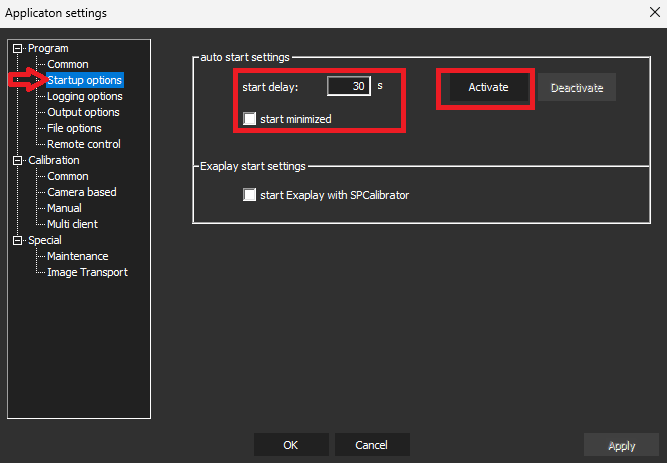
- Click
Activateto launch VIOSO with Windows startup - Click
Deactivateto stop VIOSO from being launched at Windows Startup.