
License information
Accessing License Viewer in VIOSO:
Section titled “Accessing License Viewer in VIOSO: ”After activation, the license Wizard does not show up at program startup anymore. You can access it anytime from within the application this way:
- Open the Licence viewer
- VIOSO: Menu
Help–Info about this program–License
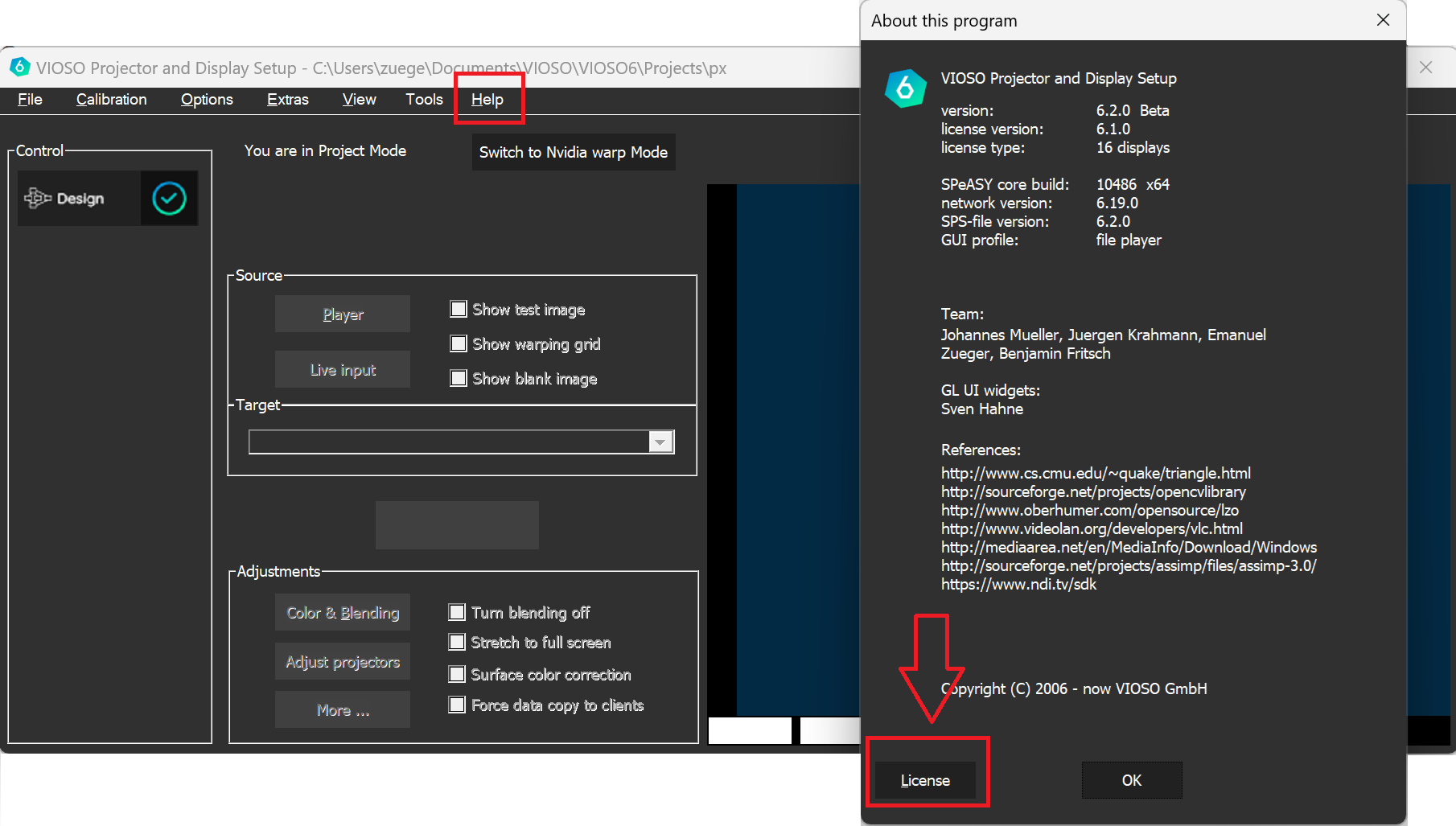
Getting the activation key in VIOSO
Section titled “Getting the activation key in VIOSO ”In the software, launch the Licence Wizard and click Activate your license, followed by Activate online (regardless if the PC is online or not).
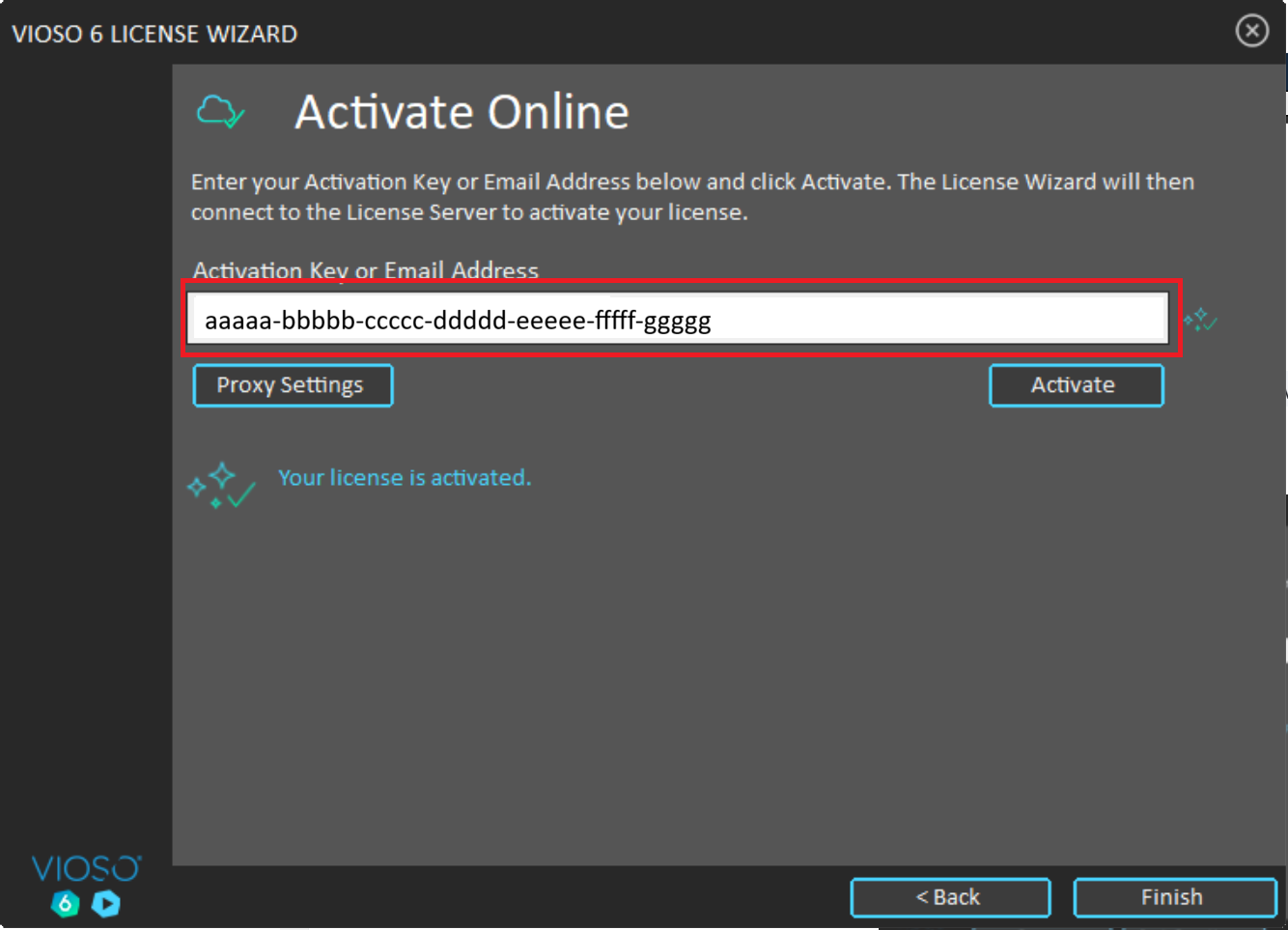
The activation key is displayed in the form field. Retrieve it via copy & paste for any subsequent task.
Retrieve License information
Section titled “Retrieve License information ”To retrieve License information, use the License Wizard and click the Icon: 
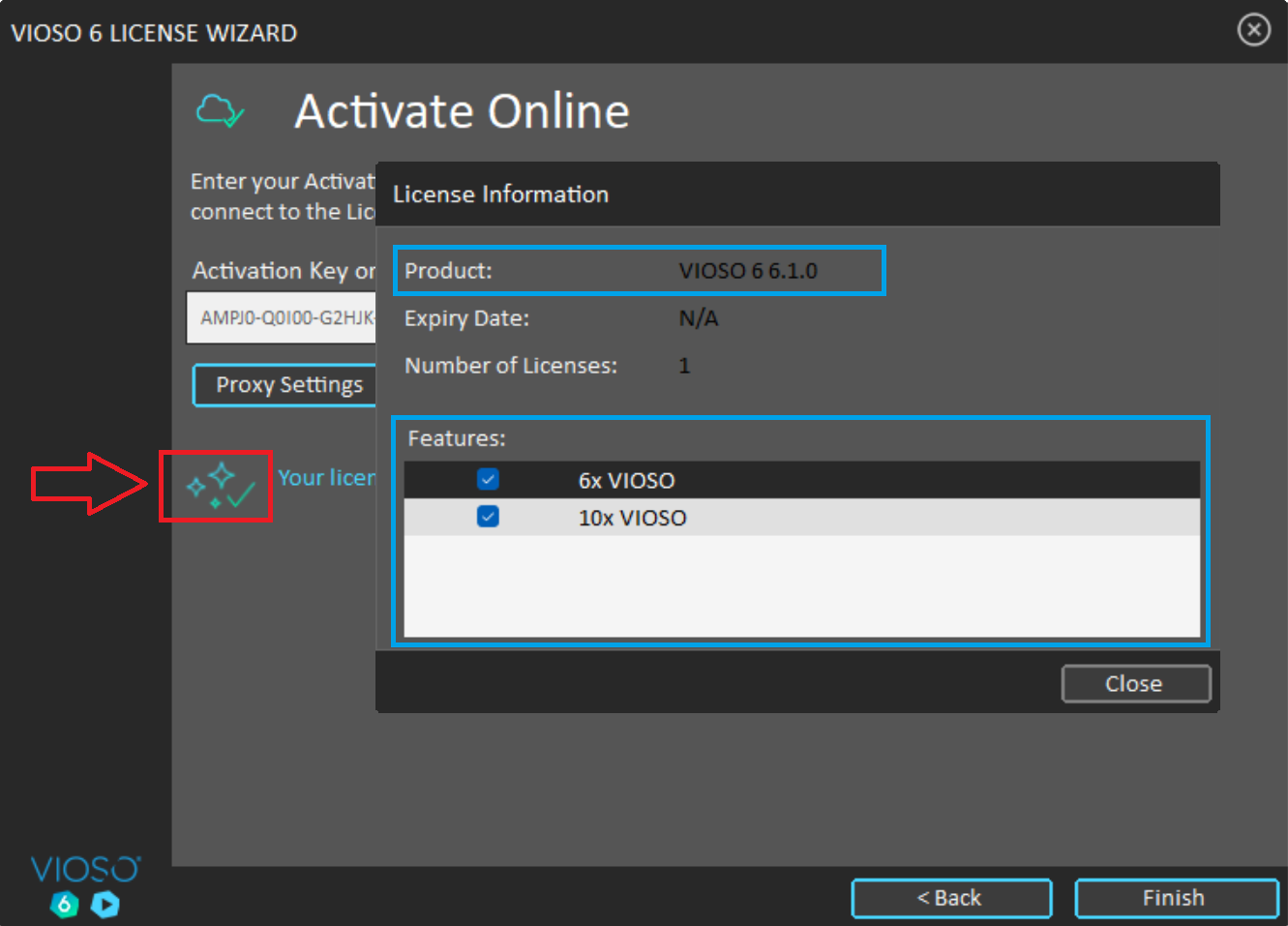
The license information contain: Version & Features.
Product:Displays the currently installed program versionX * VIOSO: Amount of channels that are avaliable for calibration. Please note that several entries can exist - the amount of channels is cumulative.
To find out the status of the maintenance, please us the Online-Ressources as described below.
Get license information online
Section titled “Get license information online ”Visit our License Self-Help website: https://vioso.com/license-self-help
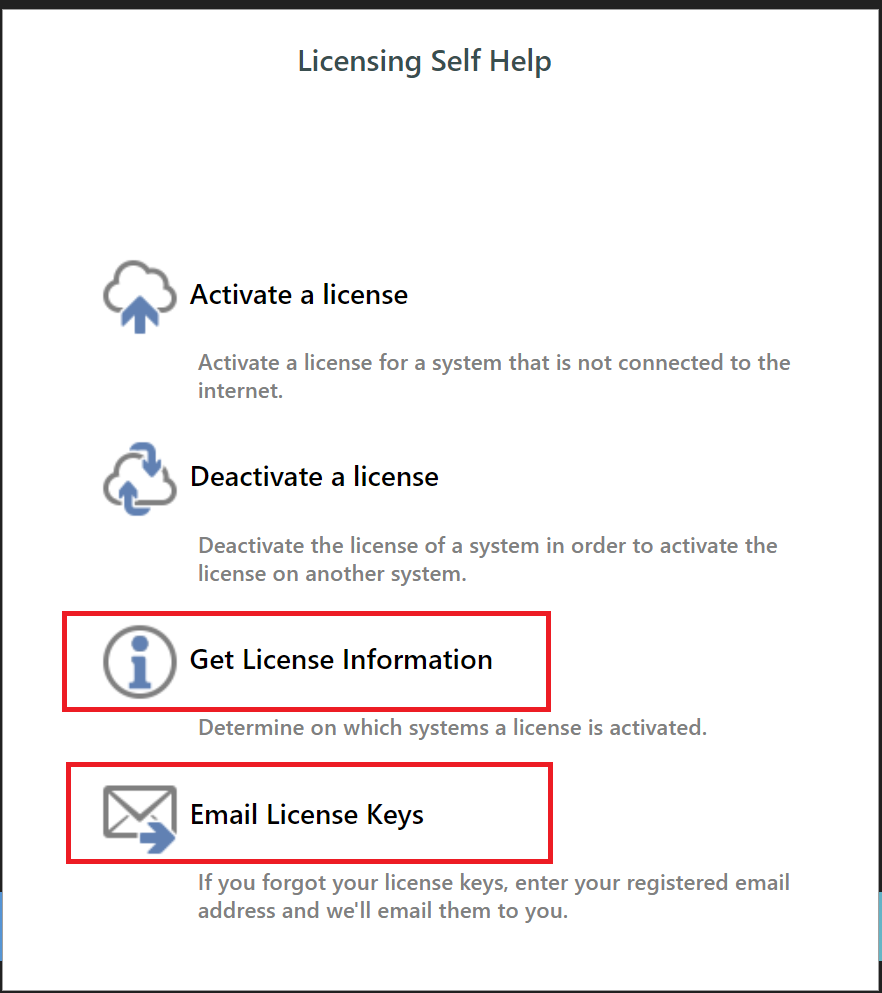
Get License Informationprovided information about:- product version
- license model (permanent or trial)
- number of licenses (number of PCs that can be activated at the same time)
- maintenenace validity: date of maintenance expiry
E-Mail License Keys- Returns a list of all licenses that are associated with your e-mail address.
- This includes also trial licenses that are not expired.