
firewall configuration
Ports used by VIOSO
Section titled “Ports used by VIOSO”To ensure VIOSO 6 functions properly, it’s essential to allow the application to communicate through the Windows Firewall. Here is a list of ports (default settings) that need to be open:
For Remote Control
Section titled “For Remote Control”- TCP Port: 8317
- UDP Port: 817
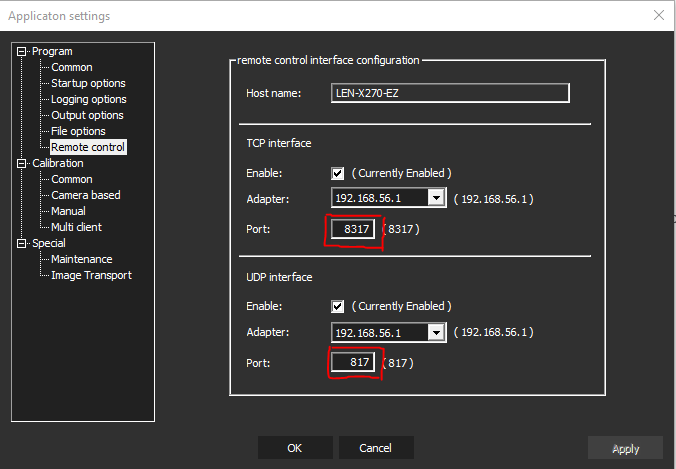
Find this dialog in menu Options - Settings: Remote Control
For Multiclient Usage
Section titled “For Multiclient Usage”- TCP Ports: 8417 and 8517
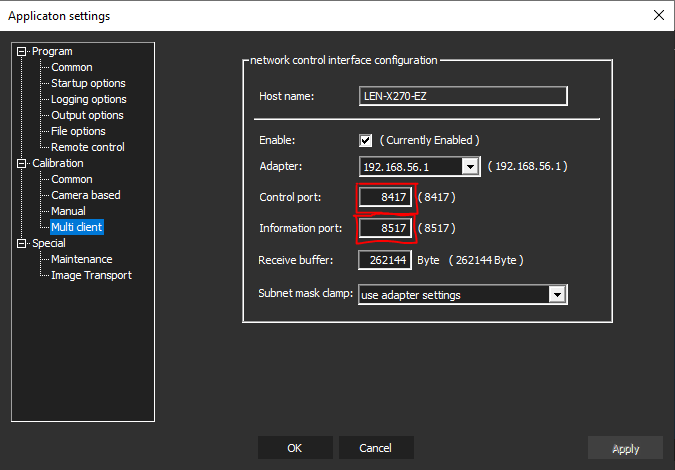
Find this dialog in menu Options - Settings: Multi client
Configuring the Windows Firewall:
Section titled “Configuring the Windows Firewall:”1. Open Windows Defender Firewall:
- Windows 10: Type “Windows Defender Firewall” in the Start menu search bar and select “Windows Defender Firewall with Advanced Security.”
- Windows 11: Search for “Firewall & network protection” in the Start menu and click on it.
2. Create a New Inbound and Outbound Rule:
- Inbound Rule:
- In the Windows Defender Firewall with Advanced Security window, click on “Inbound Rules” on the left-hand side.
- Click on “New Rule…” on the right-hand side.
- Select “Program” and click “Next.”
- Browse and select the executable file
C:\ProgramFiles\VIOSO6\SPCalibrator64.exe, then click “Next.” - Choose “Allow the connection” and click “Next.”
- Apply the rule to all network types ( Domain, Private, Public).
- Enter a name and optional description for the rule, then click “Finish.”
- Outbound Rule:
- Follow the same steps as above, but choose “Outbound Rules” instead of “Inbound Rules.”